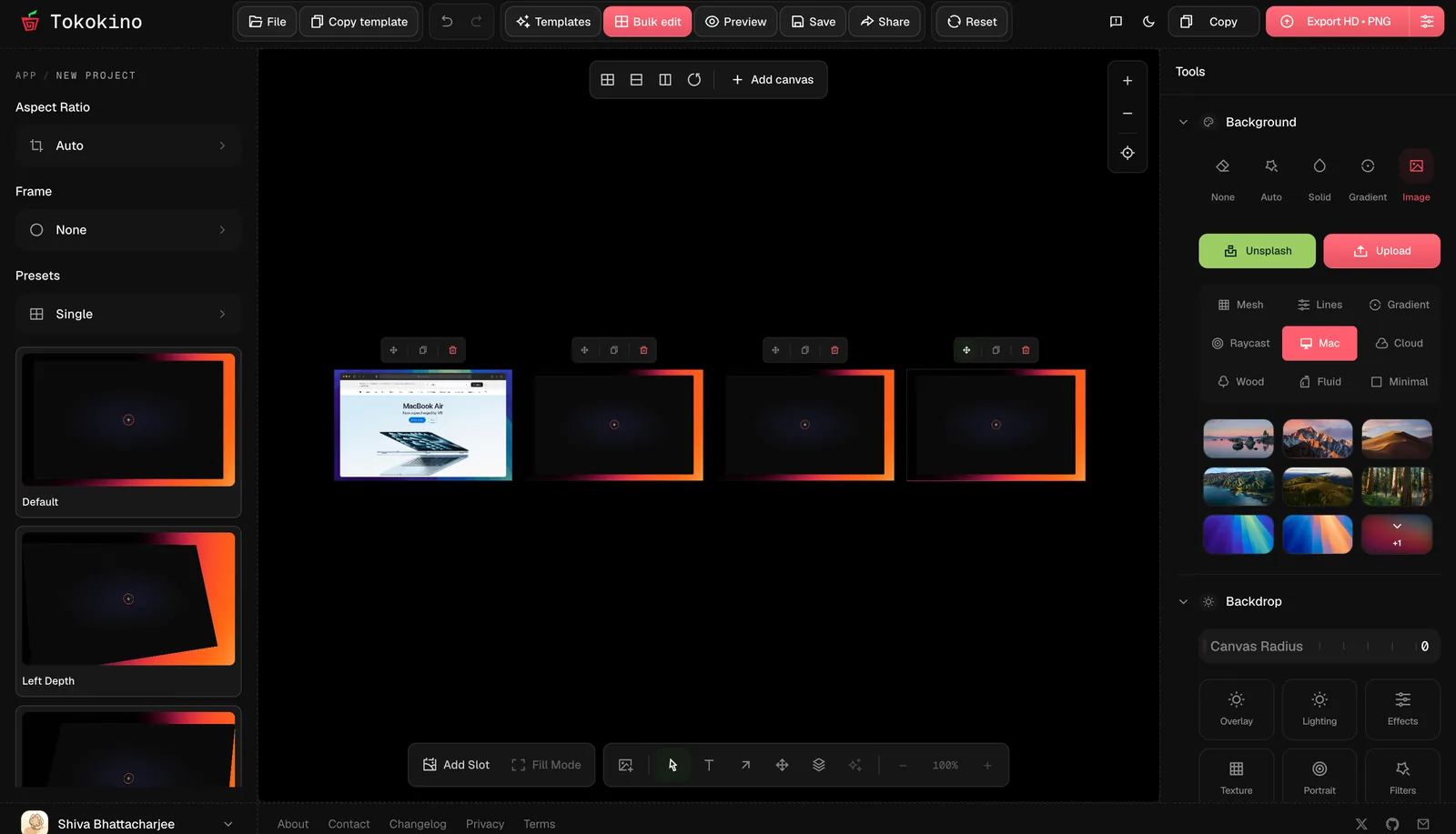
One workspace for the whole set
A launch rarely needs a single image. It needs an overview, a mobile view, a detail crop, and a social variant that all look like they came from the same session. Bulk edit puts up to twenty canvases on one pannable board so you can build that set together instead of finishing one image, starting over, and trying to match the styling from memory.
Bulk edit switches on by itself the moment a project holds a second canvas, and the top bar gains a Bulk edit button to enter or leave the board at will. Removing canvases until one remains takes you back to the single-canvas editor. Nothing about your canvases changes in the move; only the workspace around them does.
Arrange the canvases
The board is a free arrangement, not a fixed strip. Drag any canvas to a new spot, pan across the workspace, and zoom from an overview of all twenty down to a single frame. When the layout gets messy, the bulk bar above the board arranges everything in a grid, a row, or a column with one press, and Reset positions stacks every canvas back at the centre.
Add canvases from the same bar with Add canvas. Each new canvas starts blank and becomes the active one, ready for its screenshot. Twenty is the ceiling; the button tells you when the set is full. A practical habit is to give the set its shape early: one canvas per message you need to send, arranged left to right in the order a viewer would read them.
Edit one canvas at a time
Selecting never edits the whole board at once. Click a canvas and it becomes active: the left panel (aspect ratio, frame, presets) and the right inspector (background, backdrop, text, layers) both follow it, exactly as they do outside bulk mode. Style the overview, click the mobile view, style that, and keep moving across the row.
The panels remember where each canvas was. Switch between two canvases and each keeps its own preset tab and settings, so there is no re-finding your place. Apply a saved custom preset to the active canvas when several members of the set should share a look, then adjust the odd one out by hand. Presets, templates, and drafts all work per canvas here; bulk edit changes the workspace, not the tools.
What bulk mode changes
Two things behave differently on the board, both on purpose. Animate mode is unavailable while bulk edit is on: a timeline belongs to one canvas, so exit the board to direct motion, then return. The editor disables the toggle rather than letting a keyframe land on the wrong canvas.
Export also adapts. Pressing Export with several canvases open does not silently export only the active one; it opens a bulk export dialog that walks through the full set. Preview mode still works across the board, which makes it the right last check: step through every canvas in order and confirm the spacing, labels, and backgrounds agree with each other before anything leaves the editor.
A launch set in five steps
Build a small release set to learn the board. Start with three canvases: overview, detail, and social crop.
- 1.Add canvases until the set has one frame per message, then arrange them in a row.
- 2.Place each screenshot and pick its frame while the neighbours stay visible for comparison.
- 3.Apply one custom preset across the set, then tune individual backgrounds where contrast needs it.
- 4.Leave the board, add motion to the hero canvas if the story needs it, and come back.
- 5.Run Preview across the row, then export the whole set from the bulk dialog.
A saved draft keeps the entire board, so next release starts from the arranged set instead of an empty project. Open Tokokino and add a second canvas; the changelog notes board improvements as they ship.